OMNI blvd Back-office
INTERNAL USE ONLY
Departments
Team Directory

Luis Gouveia
COO
Direct Calendar Scheduling Link
https://link.omniblvd.com/widget/bookings/luis-calendar-main
Email:
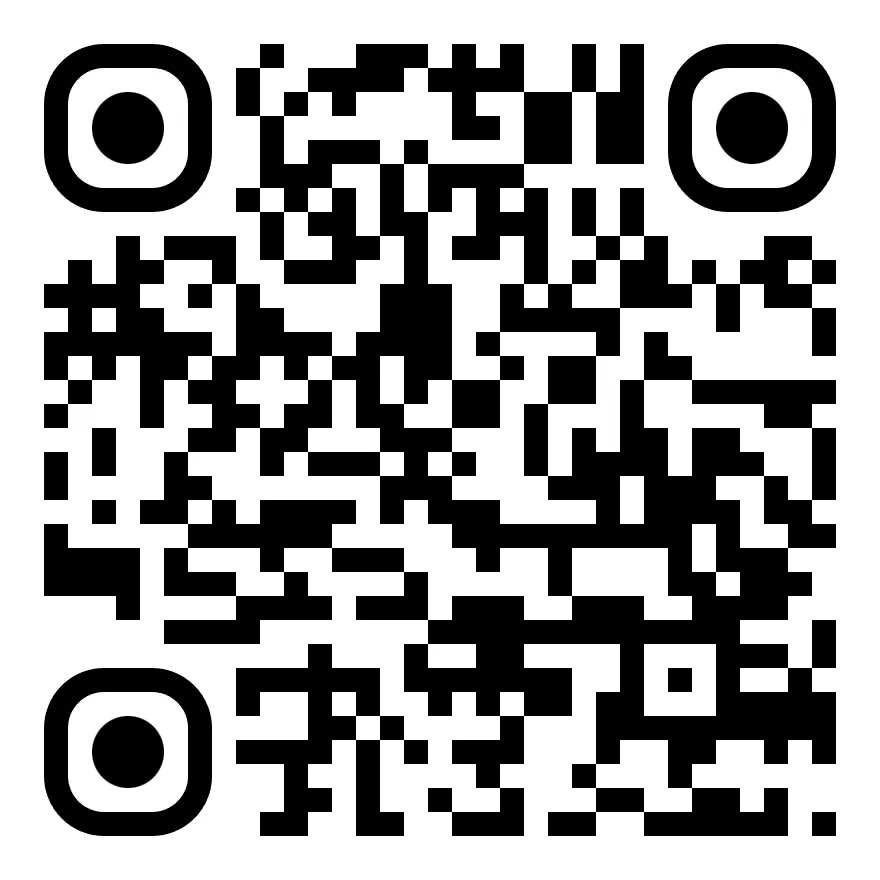
V Card URL:

Digital Business Card URL:

Claudia Gouveia
CEO
Direct Calendar Scheduling Link
Email:
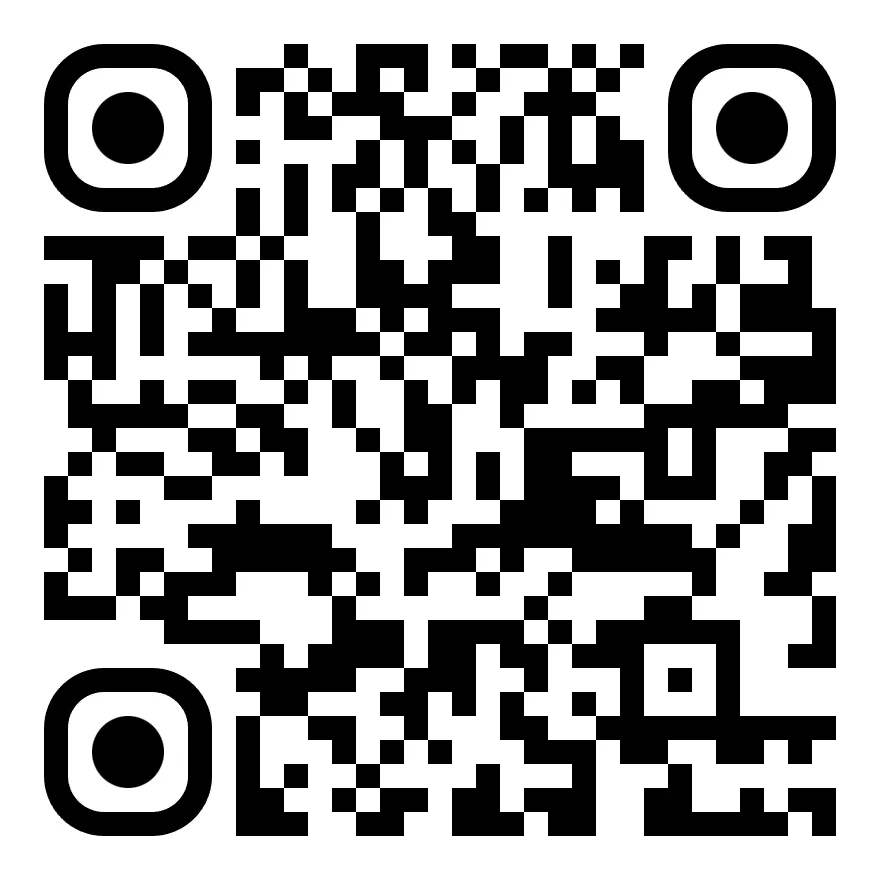
V Card URL:
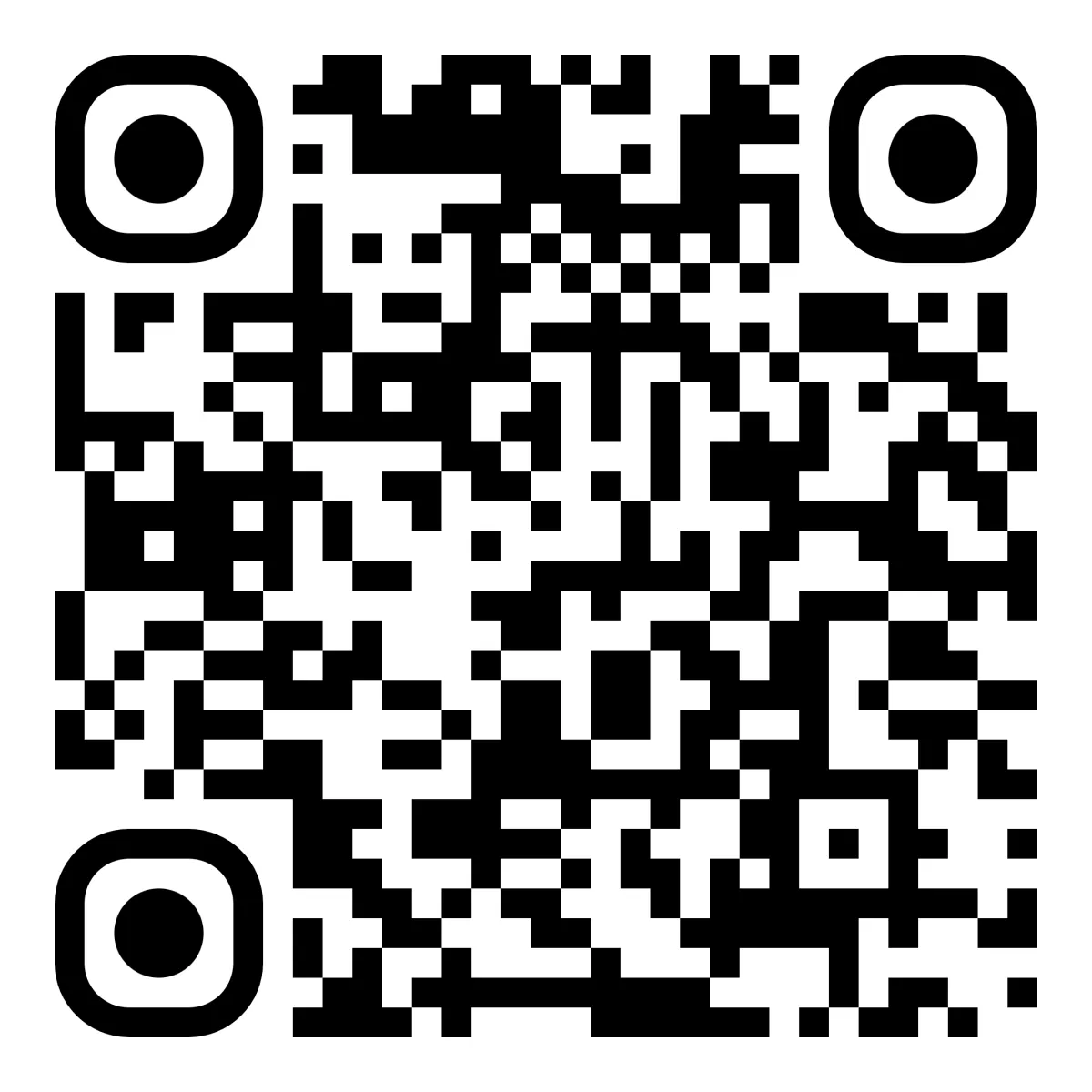
Digital Business Card URL:

Mario de Sousa
CTO
Direct Calendar Scheduling Link
Email:

V Card URL:
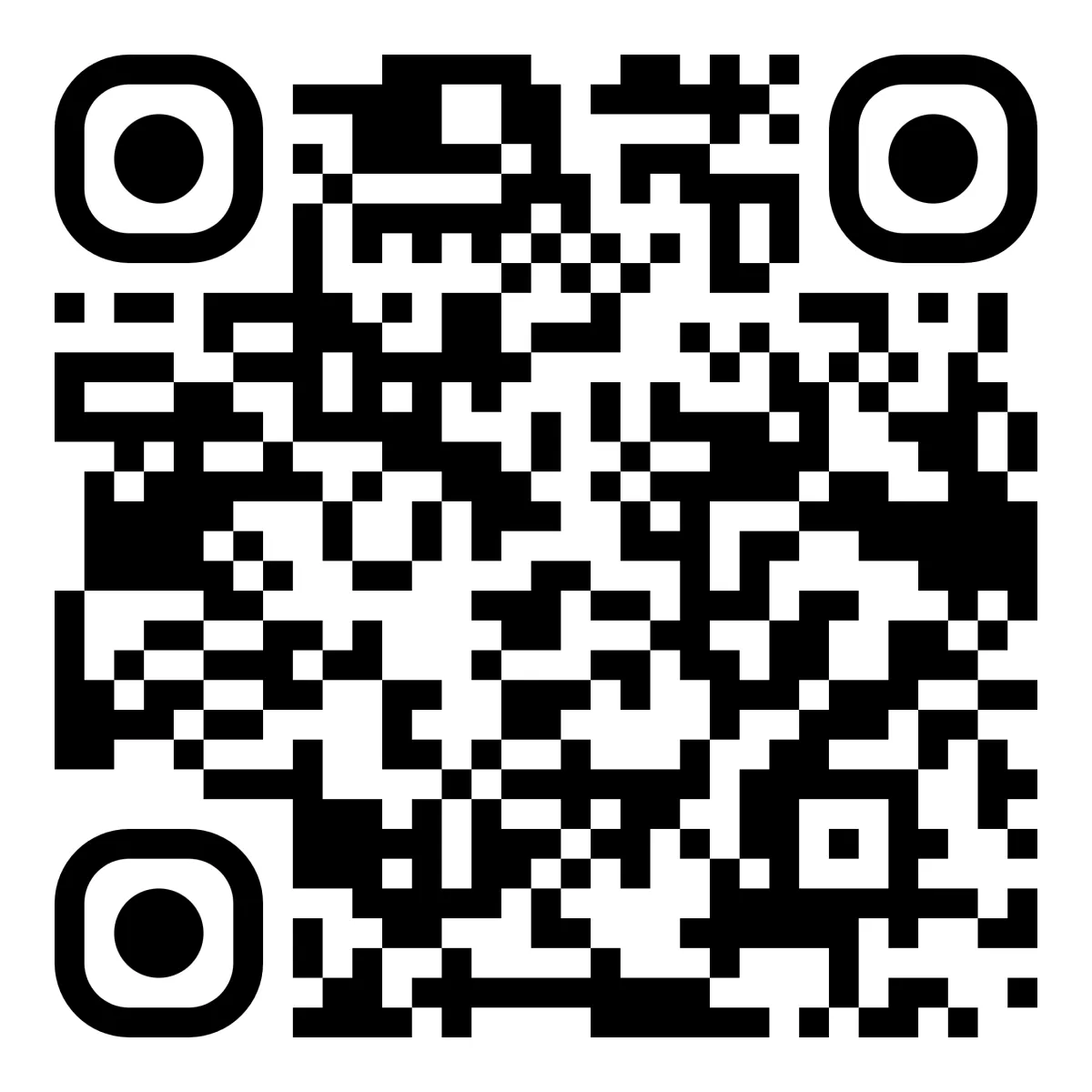
Digital Business Card URL:

Ellie Tava
Director of Sales & Affiliate Partner Program
Direct Calendar Scheduling Link
Email:
Business Card Scanning Automation Explained
How to use the business card scanning automation to auto send the contact an intro SMS or Email from you.

Step 1. Tap the Contacts tab and then the + sign followed by Scan Business Card.
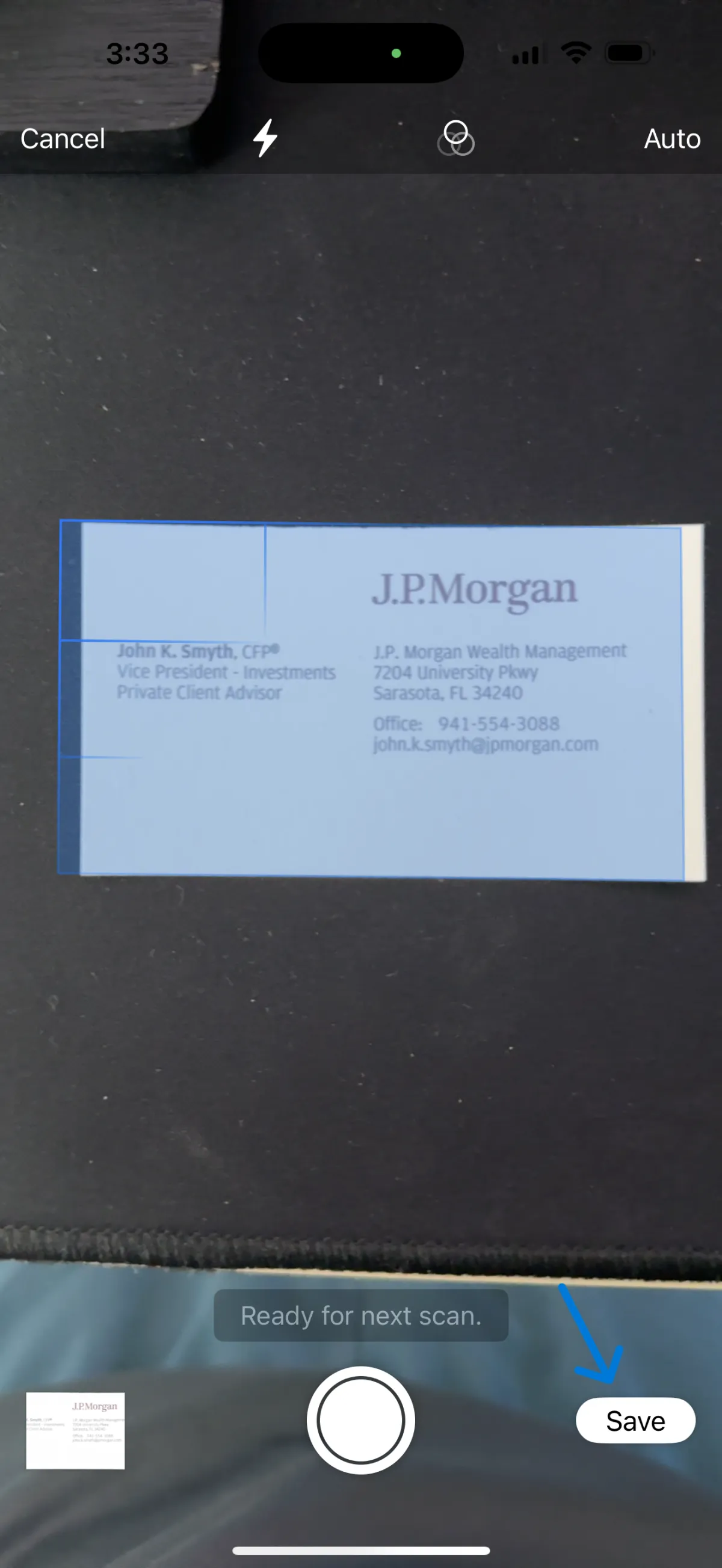
Step 2. Align the card on a flat surface and use your camera phone to capture a clear photo of the business card.

Step 3. Verify all the details look correct and then tap save.
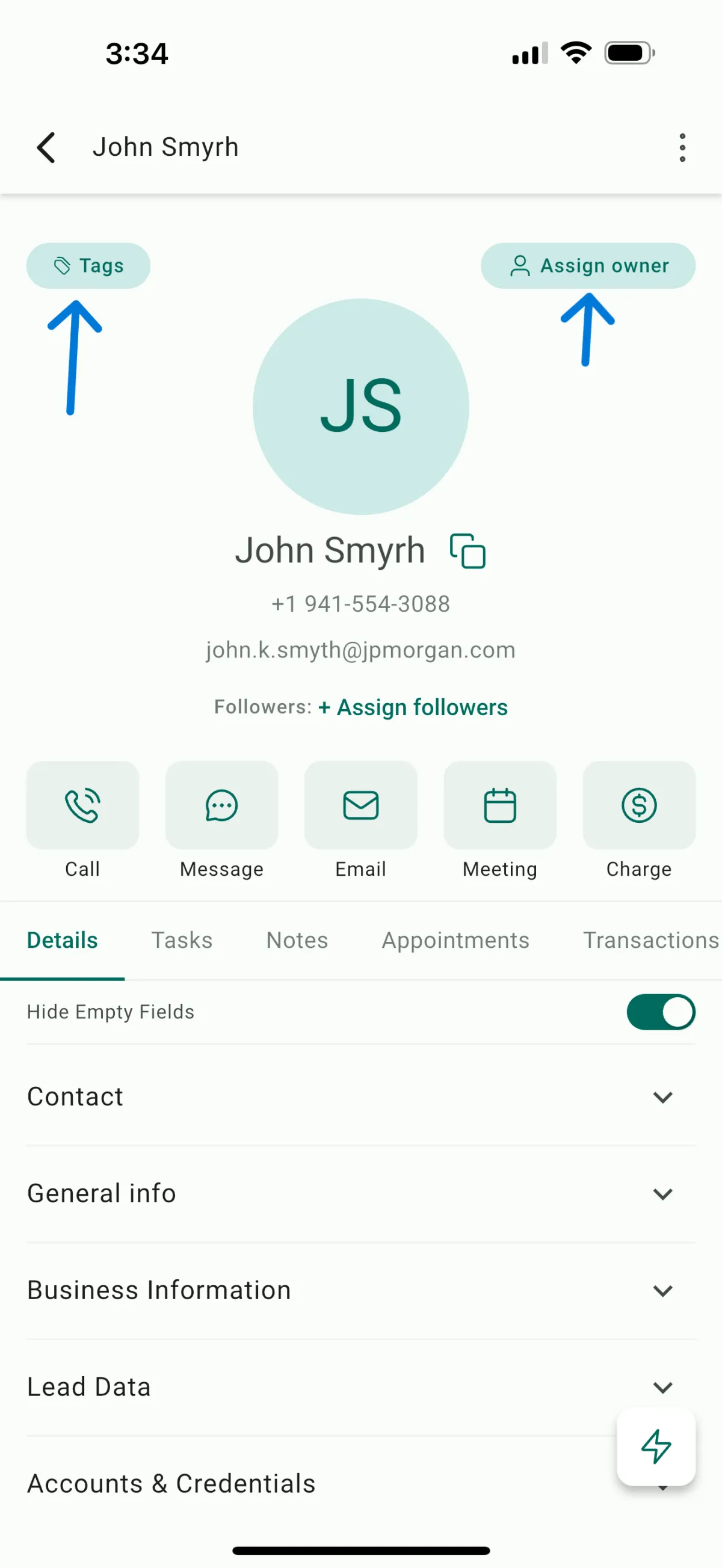
Step 4. Tap the Tags button to add the correct tag for the type of messaging that you wish to send to the contact.

Step 5. Choose one of the 0. Business Card Scan options matching the type of message you wish to send - SMS, Email or Both.
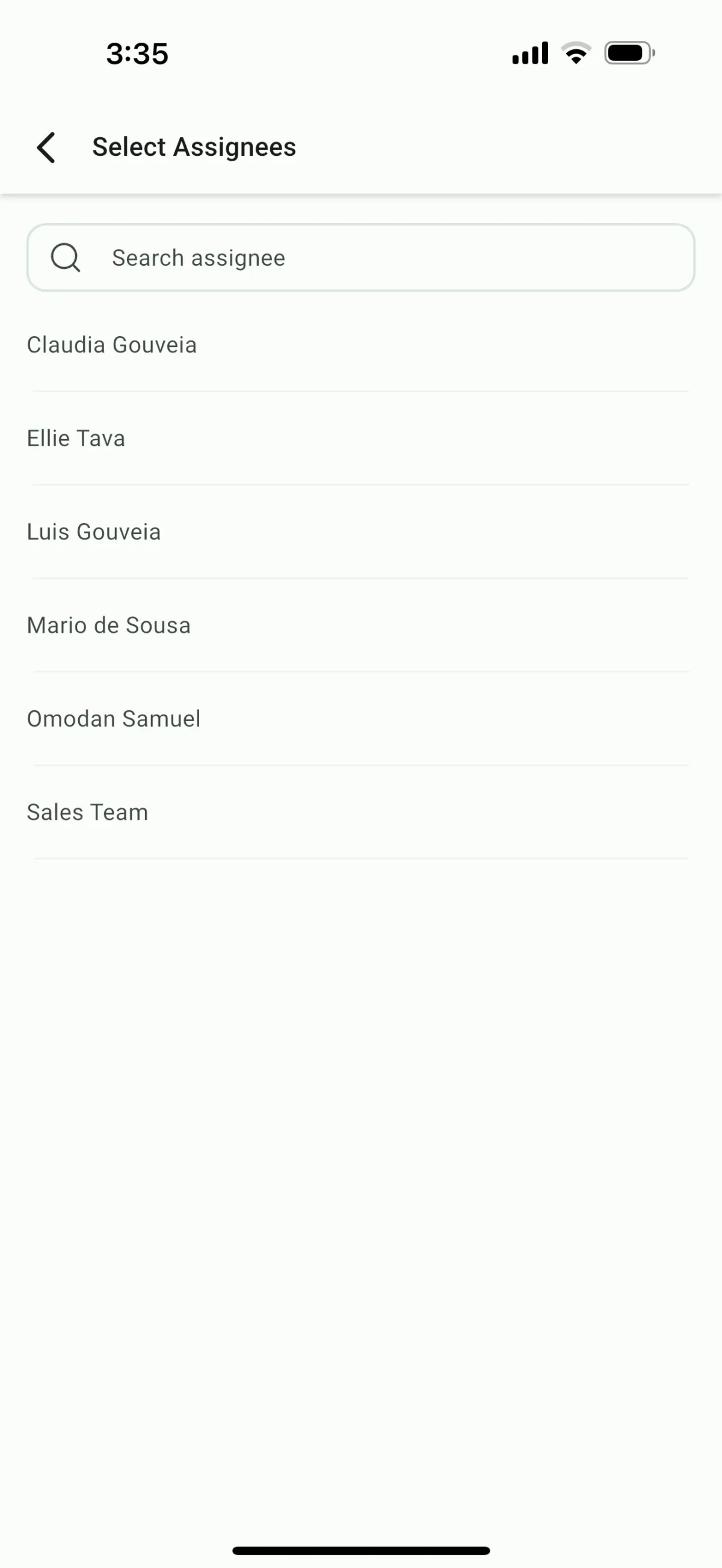
Step 6. Tao the Assign Owner button and choose yourself (or the person that you want the messaging to come from).